Add to Shopify
Add the product block to a Shopify theme from the theme editor, without editing code.
Add the product block to a product template as a JUST app block. You can choose its position in the Shopify theme editor without editing Liquid code.
Position it in Shopify, configure it in JUST
The Shopify theme editor controls only where the app block appears. Configure its text, number of questions, floating bar, and Custom CSS under Surfaces → Product block in the JUST dashboard.
Before you start, complete the Shopify installation:
- Install the JUST app.
- Activate the widget.
The product block uses the active widget to load questions and open the chat.
Add the product block
Open a product template
In Shopify admin, go to Online Store → Themes, then select Customize for the theme you want to edit.
The editor opens on the home page. Use the template picker at the top to select Products → Default product.
If the theme has several product templates, repeat these steps for every template that should display the block.
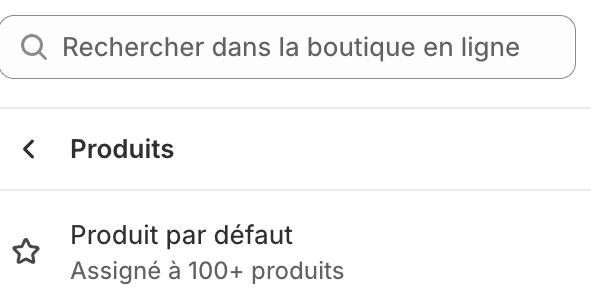
Insert the app block
In the preview, move the pointer to the position where the block should appear. We recommend placing it after the Buy buttons and, when present, after the customer reviews.
Select the + button, open the Apps tab, then choose AI product questions.
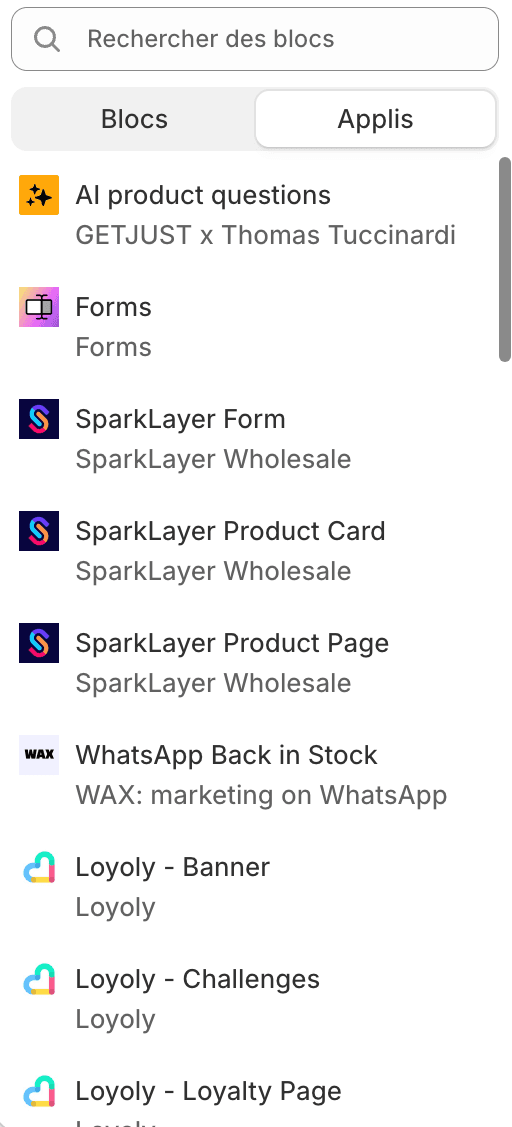
Choose whether to keep the floating bar
This setting is managed in the JUST dashboard, not in the theme editor. Open Surfaces → Product block, then configure Hide the floating bar on product pages:
- Turn it on to use the product block as the only visible entry point on pages where it renders. The block still opens the chat panel normally.
- Leave it off to display both the product block and the floating bar.
The setting applies to the entire shop, not to an individual template. If the block has no content to display, the floating bar returns automatically.
Save and test
Save the template, then open one of its product pages on the storefront. The block should display questions about that product.
If nothing appears, check the three requirements.
Edit the content and appearance
Use Surfaces → Product block in the JUST dashboard to edit the title, subtitle, input placeholder, and number of suggested questions. Saved changes apply without editing the theme, from the next widget session. Leave a text empty to show nothing in its place.
The same page contains the Custom CSS field. See Customize the product block for the available properties and parts.
Analytics and consent
No additional integration is required on a Shopify theme. Using the product
block automatically records the widget opening with source: 'product_block'.
The widget publishes analytics through Shopify, which also manages consent.
See Analytics for the metrics and the event reference for the emitted event.